
Add components to Arena Setup
This guide will walk you through the proper setup for arena components on the Game Manager. This is useful when finishing a new install or when assisting customer who are replacing or adding parts to the arena.
This is a very in-depth guide on adding arena components to a system. We recommend contacting Delta Strike Support before making changes yourself.
HARDWARE SETUP
First thing we need to do is access the hardware setup. First, you will need to login to the Game Manager. Once in the game manager select Control Panel and then Hardware Setup. Once in hardware setup select UAC Setup.
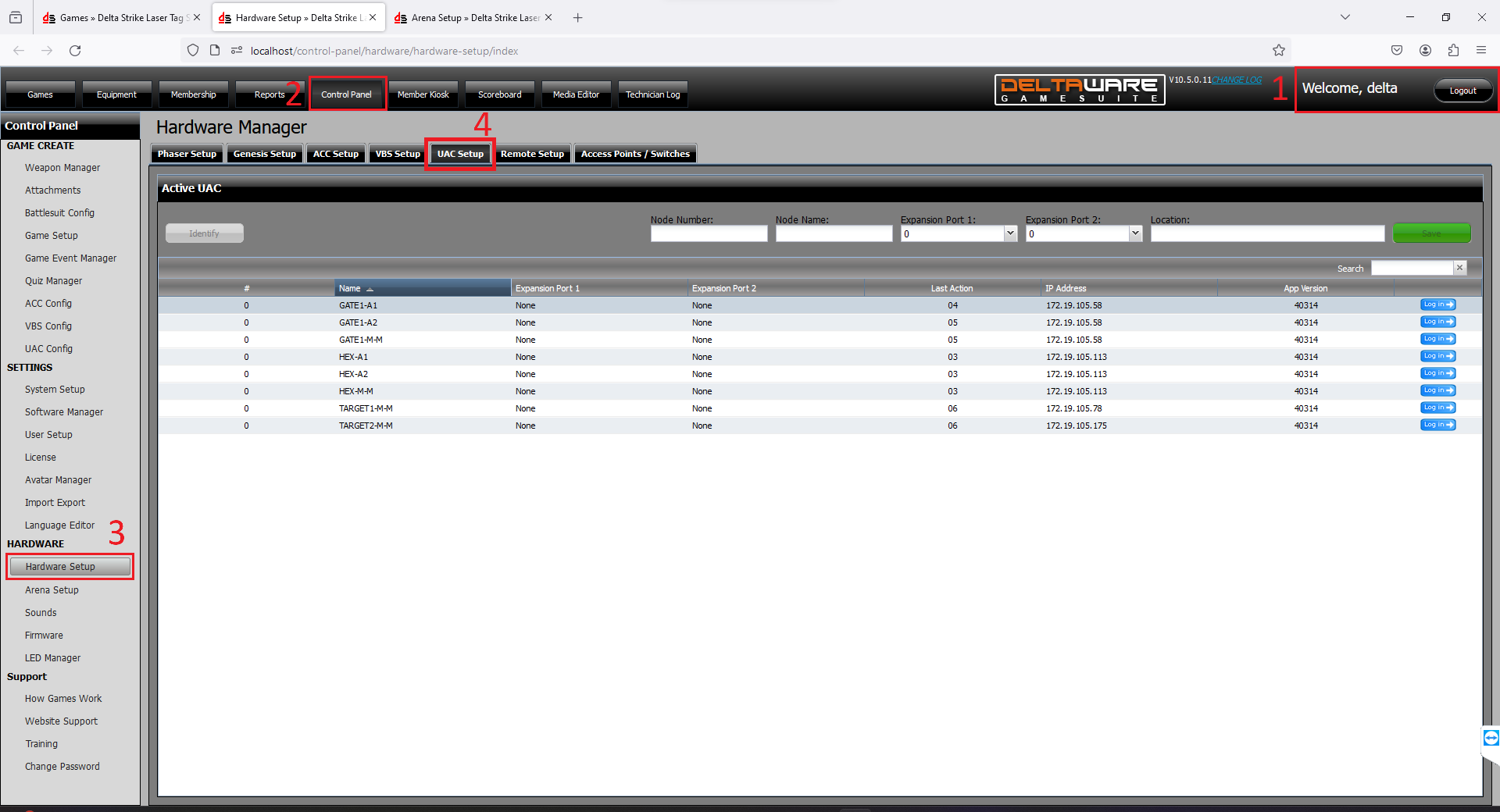
UAC SETUP
All UAC boards start with the same default node number and name. This can cause some confusion when trying to identify what you are looking at and will make the Arena Setup section easier to manage once these settings are changed. On this screen we need to change the arena components node, name and add any expansion ports where needed. Do not forget to hit save when making changes.
-
Node Number - default ranges for arena compents found here
-
The main thing to note for node numbers is avoiding duplicates or anything that looks like they are grouped together.
-
-
Node Name - what the target is (Example: Target, Gate, type of Prop)
-
Expansion Port 1 and 2 - used on the master target for Targets and Hex Base
-
Location - where it is in the arena (optional)

GATES
Gates or known as energy gates function as a trip mine. When a player passes through the gate, depending on the state of the target, it could tag the player out. In the example photo you can see how this gate is setup.

Gates node numbers are setup a bit different to a Target setup. When setting the master target node have the number end in 3. In the example photo the gate master is set as 713. For each auxillary target coming off of it, we will end the node number with 1, 2, 4, or 5 depending on how many targets are on the gate. For a three piece energy gate yours will be set just like the photo. Also note how the names are setup. If there is a second energy gate being used you will name it GATE2 for each target added.
TARGETS
Targets can be setup as a single Master target, a master target with Auxillary targets or having Nano targets attached to the master target as well. These are usually placed on the wall or a prop for players to gain extra points. In the example photo you can see how these two targets are setup.

For master targets, it is good to make your node numbers end with 0. For every group of targets you want to start with a new increment of 10. You can see in the example that the nodes for these two targets are 700 and 710. If you were to add any Auxillary targets to the 700 master you would you would make it 701, 702, 703, etc. In the photo we can see an expansion port is assigned to one of the targets. Always set both expansion ports to avoid unwanted confusion. Also note how the names are setup to identify the targets.
HEX BASE
A hex base is setup similar to a target, but will always have 2 auxillary targets attached to it. In the example photo you will see how one is setup.

The master target ends in 0 and is an increment of 10. For the auxillary targets they will be 731 and 732 in this example. You must set the expanstion port, on the master target, to Base. It is always best to set both expansion ports. Also note how the names are setup to identify the UAC targets. If you were to add a second Hex base the name would be HEX2 for each target added.
VBS
You can view the VBS settings from the VBS Setup tab. No settings will be changed here.

ARENA SETUP
Arena setup is where you will add the arena components, so they function in a game.
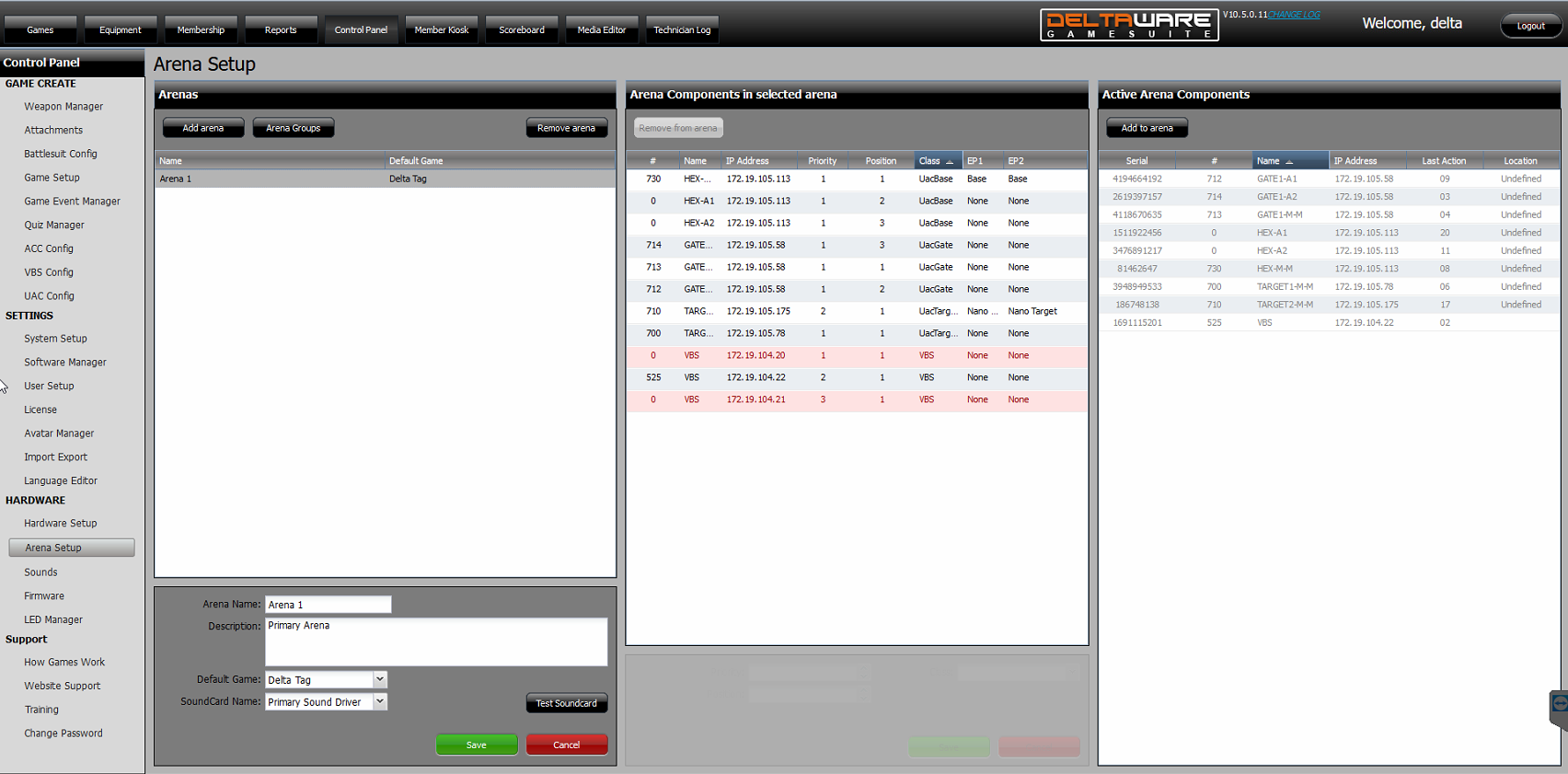
SETUP FOR ALL COMPONENTS
Priority - the group that it is in
Position - where it is in that group
Class - the type of component
Note: The UAC target setup is just an example of how things are placed in the Arena Setup. The prop target is also a UAC target. If there are no other targets then this would become Priority 1 and Position 1, etc.
|
NAME |
PRIORITY |
POSITION |
CLASS |
|---|---|---|---|
|
TARGET1 - M |
1 |
1 |
UACTARGET |
|
TARGET1 - A1 |
1 |
2 |
UACTARGET |
|
TARGET1 - A2 |
1 |
3 |
UACTARGET |
|
TARGET2 - M |
2 |
1 |
UACTARGET |
|
TARGET2 - A1 |
2 |
2 |
UACTARGET |
|
TARGET2- A2 |
2 |
3 |
UACTARGET |
|
PROP1 - M |
3 |
1 |
UACTARGET |
|
PROP1 - A1 |
3 |
2 |
UACTARGET |
|
PROP2 - M |
4 |
1 |
UACTARGET |
|
PROP2 - A1 |
4 |
2 |
UACTARGET |
|
GATE1 - M |
1 |
3 |
UACGATE |
|
GATE1 - A1 |
1 |
2 |
UACGATE |
|
GATE1 - A2 |
1 |
4 |
UACGATE |
|
GATE2 - M |
2 |
3 |
UACGATE |
|
GATE2 - A1 |
2 |
2 |
UACGATE |
|
GATE2 - A2 |
2 |
4 |
UACGATE |
|
HEX1 - M |
1 |
1 |
UACBASE |
|
HEX1 - A1 |
1 |
2 |
UACBASE |
|
HEX1 - A2 |
1 |
3 |
UACBASE |
|
HEX2 - M |
2 |
1 |
UACBASE |
|
HEX2 - A1 |
2 |
2 |
UACBASE |
|
HEX2 - A2 |
2 |
3 |
UACBASE |
|
VBS1 |
1 |
1 |
VBS |
|
VBS2 |
2 |
1 |
VBS |
|
VBS3 |
3 |
1 |
VBS |
|
ACC Base |
1 |
0 |
Primary |
|
ACC Base |
2 |
0 |
Primary |
|
ACC Gate |
1 |
0 |
Gate |
|
ACC Gate |
2 |
0 |
Gate |
|
ACC Target |
1 |
0 |
Secondary |
|
ACC Target |
2 |
0 |
Secondary |
|
ACC Shooter |
1 |
0 |
Shooter |
|
ACC Shooter |
2 |
0 |
Shooter |
Final Steps
Restart the Game Server application and run a test game.