
Genesis – Phaser or Remote Connection Issues
Phasers and Remotes are sometimes unable to connect to the server or may connect and disconnect. This article covers some of the fixes for various connection issues.
Power Cycle
The first step when having a connection issue is to power cycle the phaser (Turn it off, then back on). You can do this by placing a Genesis Key in the slot on the Back Plate of the vest, then after it turns off, plug it back into the charger. You can also turn the vest off using the remote. If the phaser doesn't connect, follow these additional steps.
Check Phaser/Remote Network Settings
If your location is using Genesis version 10.4.1.x or lower, you will have to manually set up the network for each phaser/remote.
To manually set the device to the network click here.
If your location is on version 10.4.2.x or higher, the above article is still useful, but when you reset the phaser, it should be given an IP address and network settings by the Game Server automatically.
Replacing the Phaser’s Network Hardware
If your phaser is connecting and disconnecting from the server, it is good to check these visual signs for a working or defective module. If you have a Nina wifi module please replace this with an Odin.
Image 1 – Green LED/connected Image 2 – Blue and Red LED/ Image 3 – Broken module/replace
Disconnected
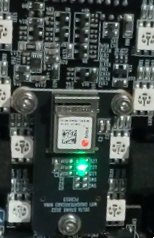 Green LED/ Connected
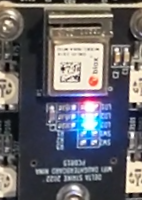 Blue and RED LED/ disconnected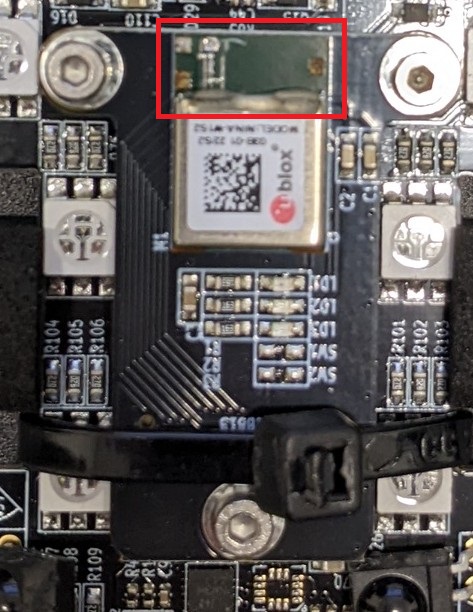
Wifi module broken
If the settings are correct, or a hardware fault was identified during the previous step, you may have to replace the phaser’s network hardware.
Click here to learn how to replace the network hardware.
Multiple Devices With Network Issues
If you have multiple devices disconnected from the network (for example none of your phasers can connect), of course feel free to contact support.
There are things you can do that may help our support staff, or may even fix your network problem.
- Check that your PC is connected to the Game Network via ethernet.
You should be connected to 2 networks, one for your internet (can be Wi-Fi or cable), and another network for the Delta Strike devices. This network should also be set as a private network. - Check the devices on your networks.
To do this, press the ⊞ (window) key, then type “cmd“, then enter. This will bring up the terminal.
Now type “arp -a“, you should see one of the networks look like this,
with the Interface set as 172.19.99.100
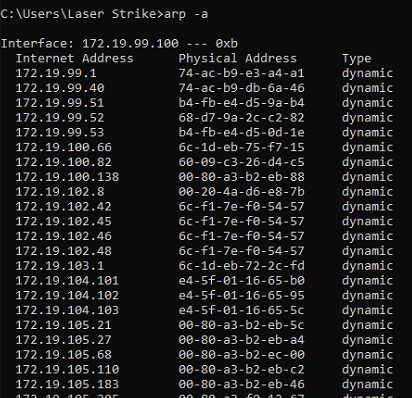 There are many devices with the address starting in 172.19. These addresses are all used by the game network.
Please let our support staff know if you notice anything different when it comes to these checks.
Updating Wi-Fi Modem Firmware
If a specific device is not staying connected, or seems to drop off the network more than the other devices, you may want to update that modem’s firmware.
You can upload new modem firmware via the game manager on the Modem tab.