
How do I replace a Phaser LCD screen (MD2012)?
This article shows you what to do if you need to replace the phaser LCD screen.
My Phaser LCD Screen isn't working.
Before replacing the LCD screen of your phaser, its important to make sure that screen is actually the problem. There are a few things to check before putting a new screen in your phaser.
1) Make sure the phaser is getting power. If nothing is lighting up, that may be the issue.
2) Make sure you try to power cycle the phaser. If there was a loose connection or the screen was recently replaced, it won't display anything until the phaser is turned off and back on.
3) Check to make sure the screen is connected to the mainboard of the phaser.
If the screen still doesn't work, follow the steps to replace it.
Genesis – How to replace: LCD Module – MD2012
Start by powering off the phaser by inserting the key into the slot in the back sensor. The phaser is off when all the lights have turned off.
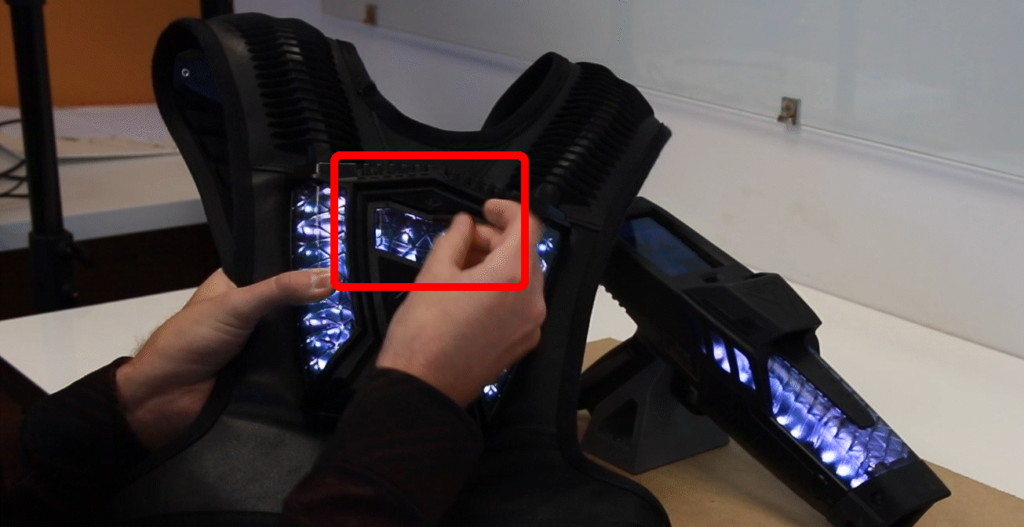 Always power off the unit before performing maintenance.
| Part Name: | Module – Genesis LCD |
| Part Number: | MD2012 |
| Model: | Genesis Pro / Genesis FEC |
Remove the nozzle with a screwdriver or the head of the hex driver by slotting in into the gap at the front of the phaser. Then use the hex driver to unscrew the 6 hex screws on the bottom of the phaser. Ensure that the hex driver is set to 9 and is set to the reverse direction. The top plastic enclosure should now easily pull away.
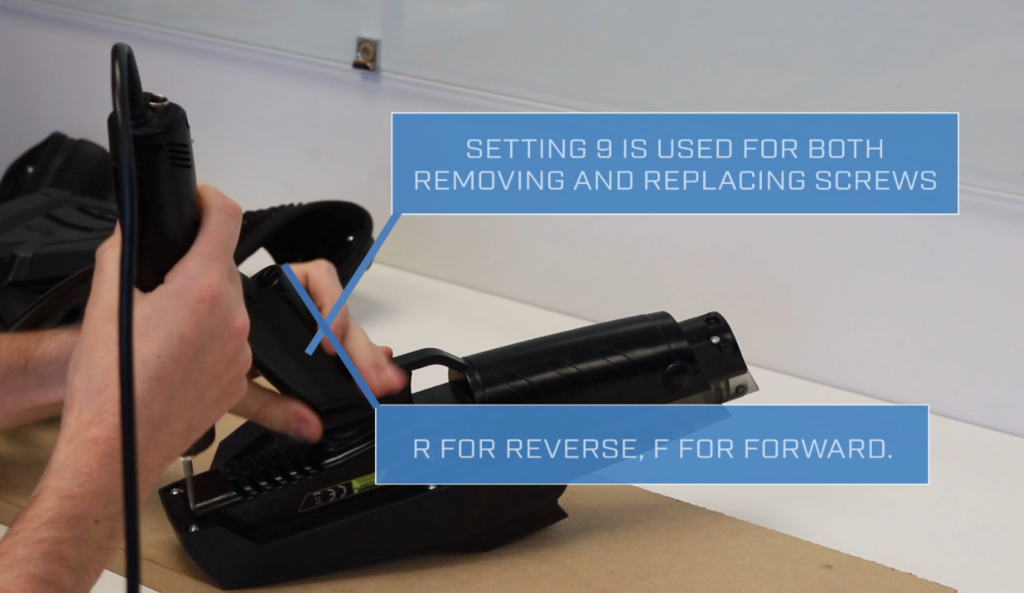
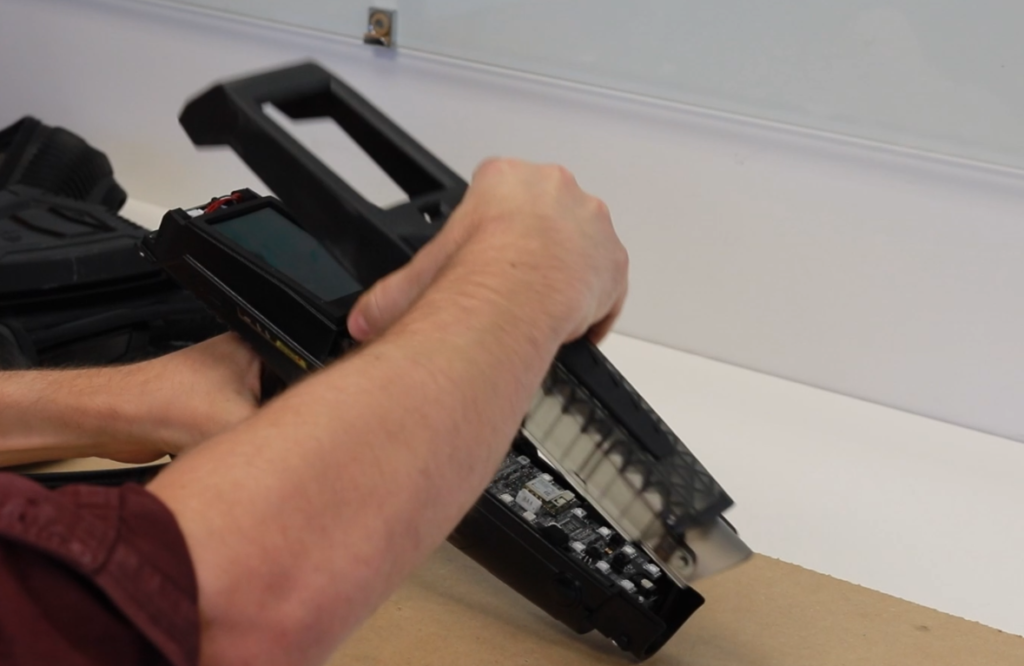
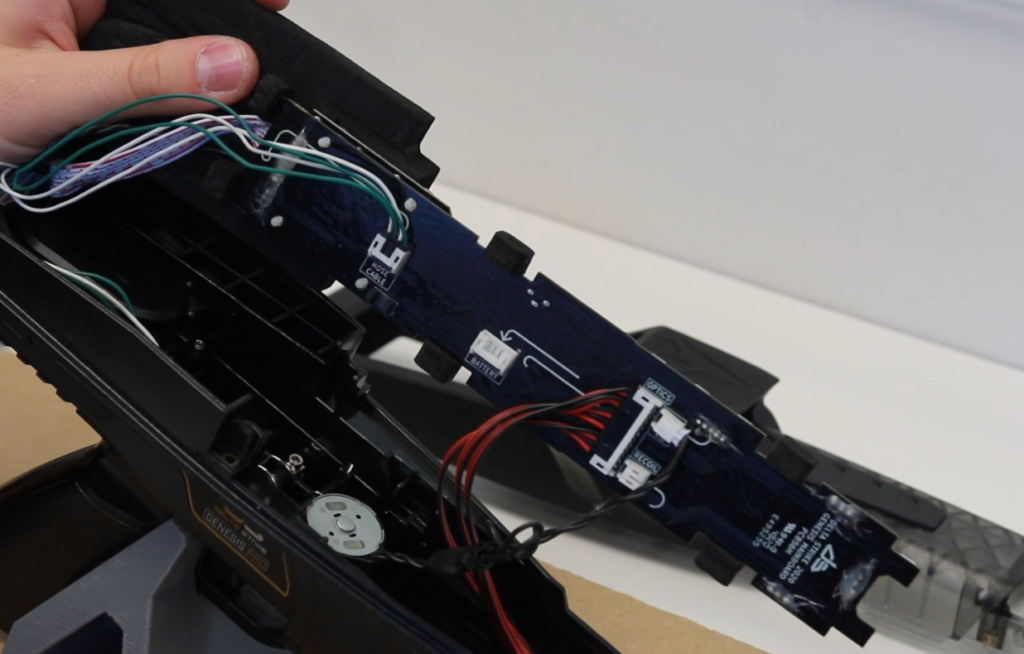
Remove the main board by pulling back on the LCD screen, while gently supporting the front of the PCB. Set the main board to the side of the phaser while you carefully pull out the cables inline with the direction of the plugs. Slide out the NFC reader if you have a pro system.
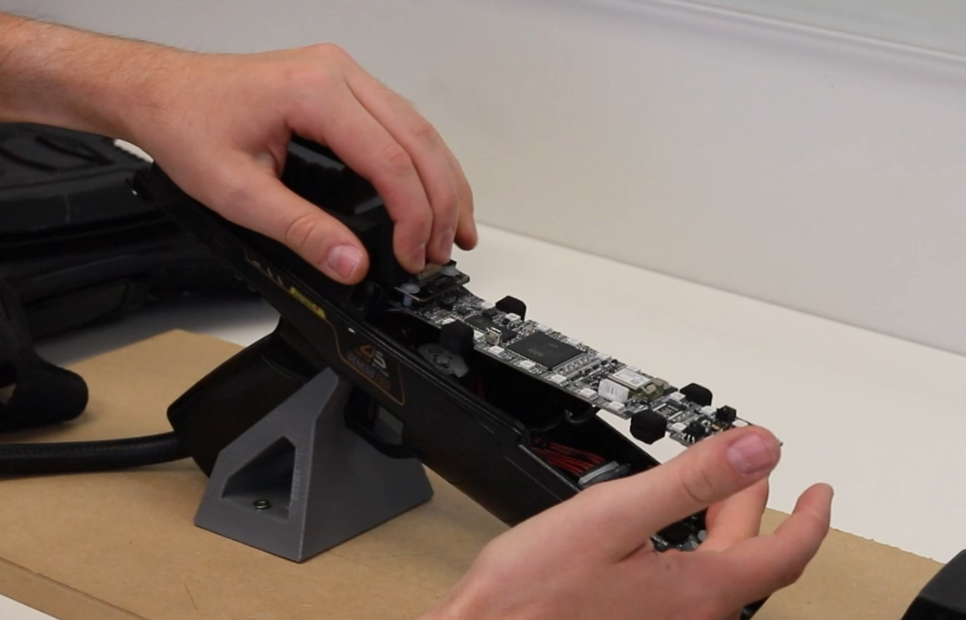
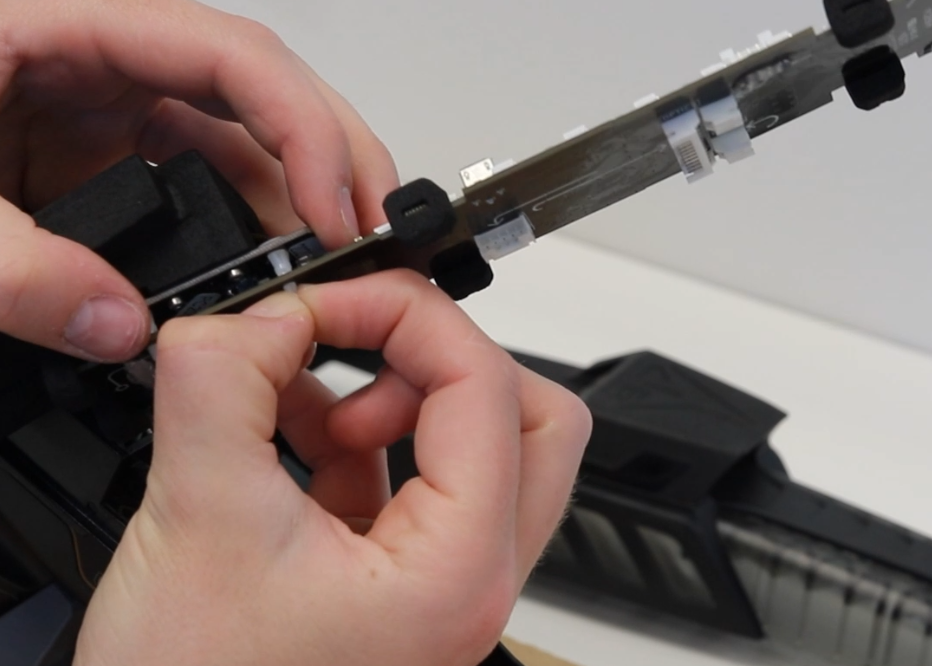
Remove the LCD screen by pinching the plastic supports under the main PCB. You can also use the end of a pen to assist in removing these supports.
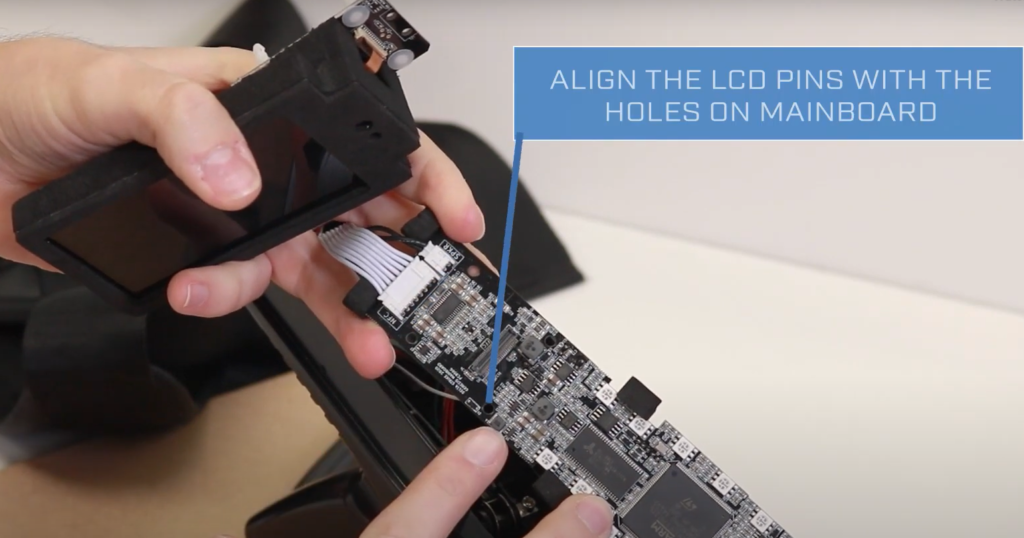
Attach the new LCD to the mainboard by lining up the pins with the holes on the mainboard.
Insert the cables from back to front, ensuring that no cables are being pinched or strained when the mainboard is placed back into its cavity.
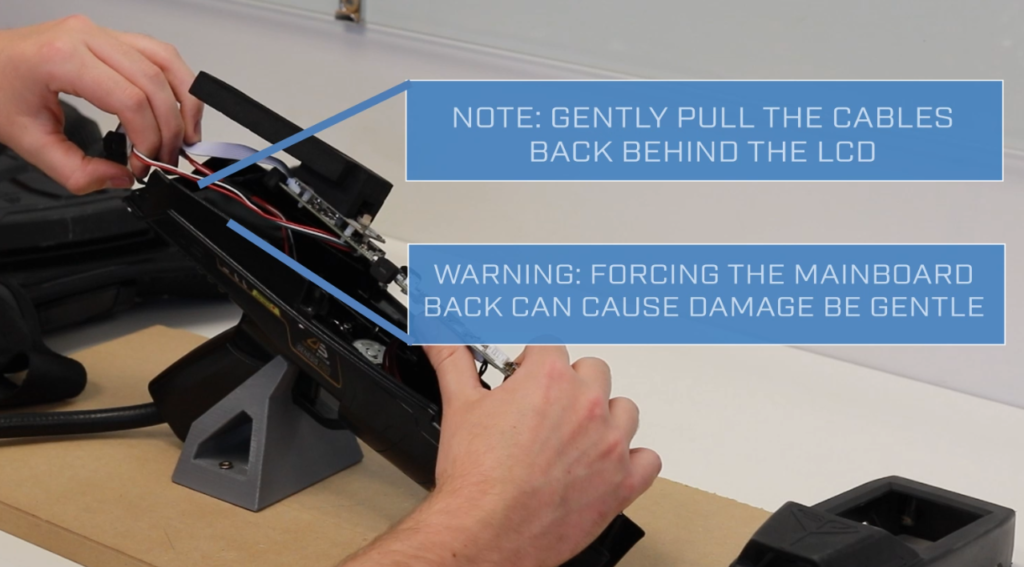
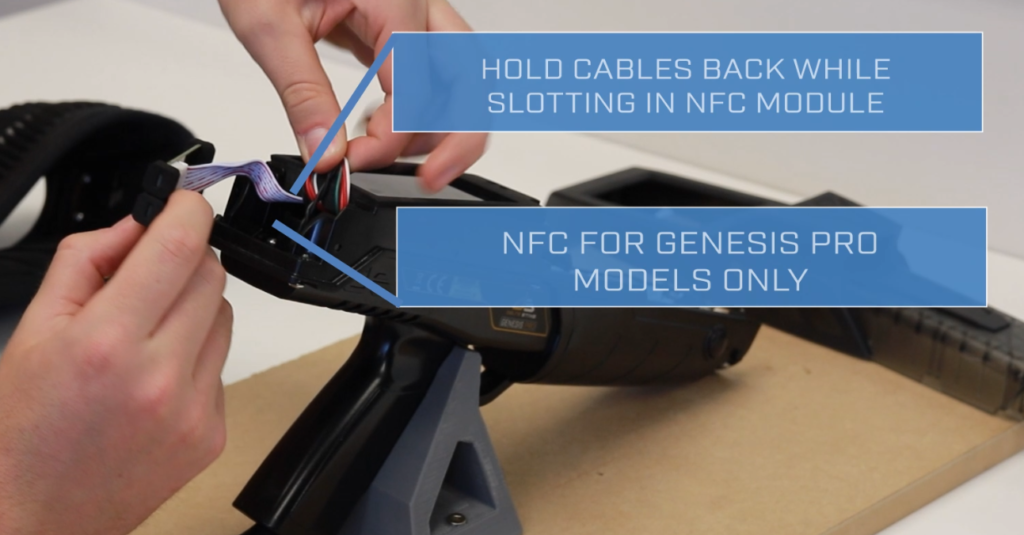
Once the cables are securely tucked away, insert the NFC module. You can now reattach the top part of the enclosure using the hex driver.