
How Do I Update Firmware?
There are two ways to update the firmware on a phaser or remote, the easy way and the .....other way.
Genesis – Upload Firmware Via the Game Manager (The Easy Way)
Sign in with the manager login details
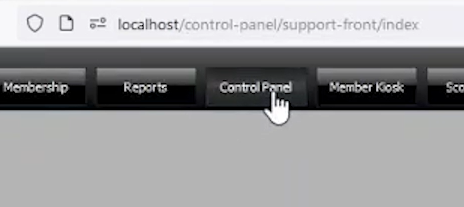
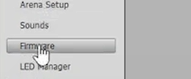
Go to the “Control Panel” tab at the top of the page, then click Firmware on the left side of the page
Click the “Genesis Phasers” button near the top.
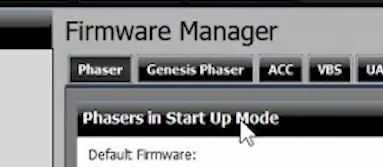
Select the phasers you would like to update from the right hand panel, then click “Set to startup mode“.
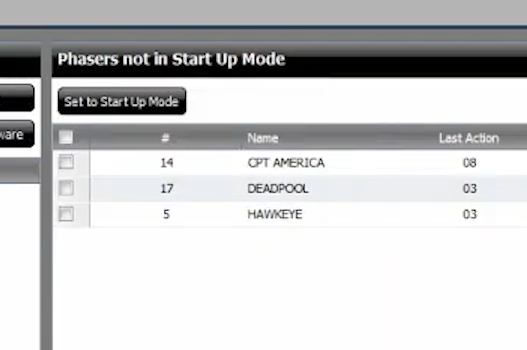
In the left hand panel, each of the 6 components from each vest should now appear as individual entries in the list.
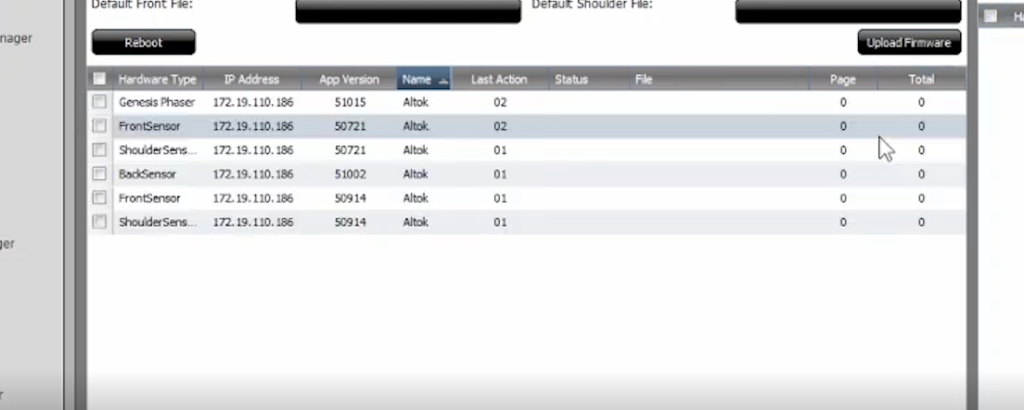
Click the checkbox at the top to select all, or click each individual component you would like to update. When you have made your selection, click “Upload Firmware“.
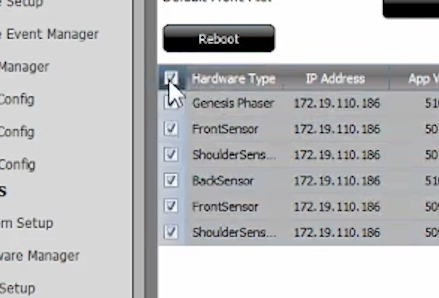
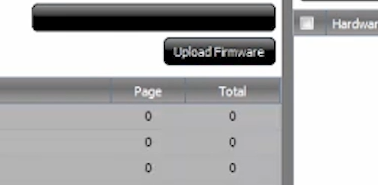
The game manager will now put these components into a queue and upload the firmware a few items at a time.
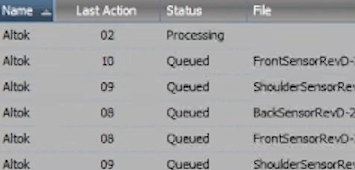
Once a phaser has been uploaded, it will take a few minutes to install the new firmware. Once it has completed successfully, the phaser should return to the mode it was in before (usually charge or pregame). Completed phaser firmware installs will appear back in the right hand panel.
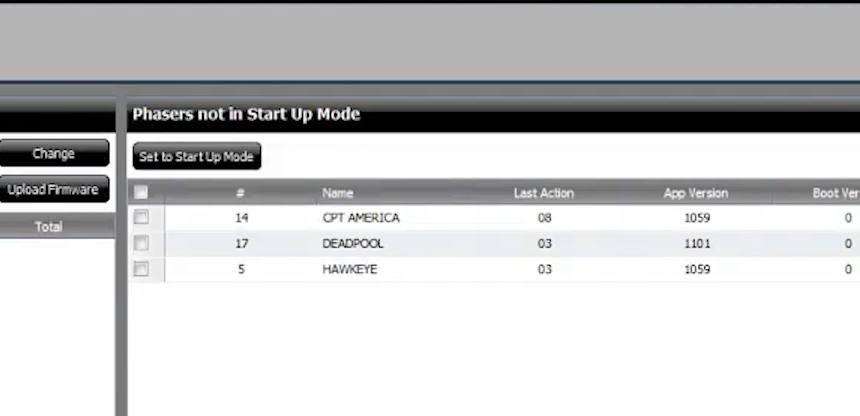
If the phaser is stuck on “UPLOADED” there may have been a problem during the upload or install. You can tell there is an issue if the time in “Last Action” is over 3 or 4 minutes. This means that the phaser has not communicated with the server in that amount of time.
To fix this, you may have to manually upload the phaser firmware using the STM32 Cube Programmer.
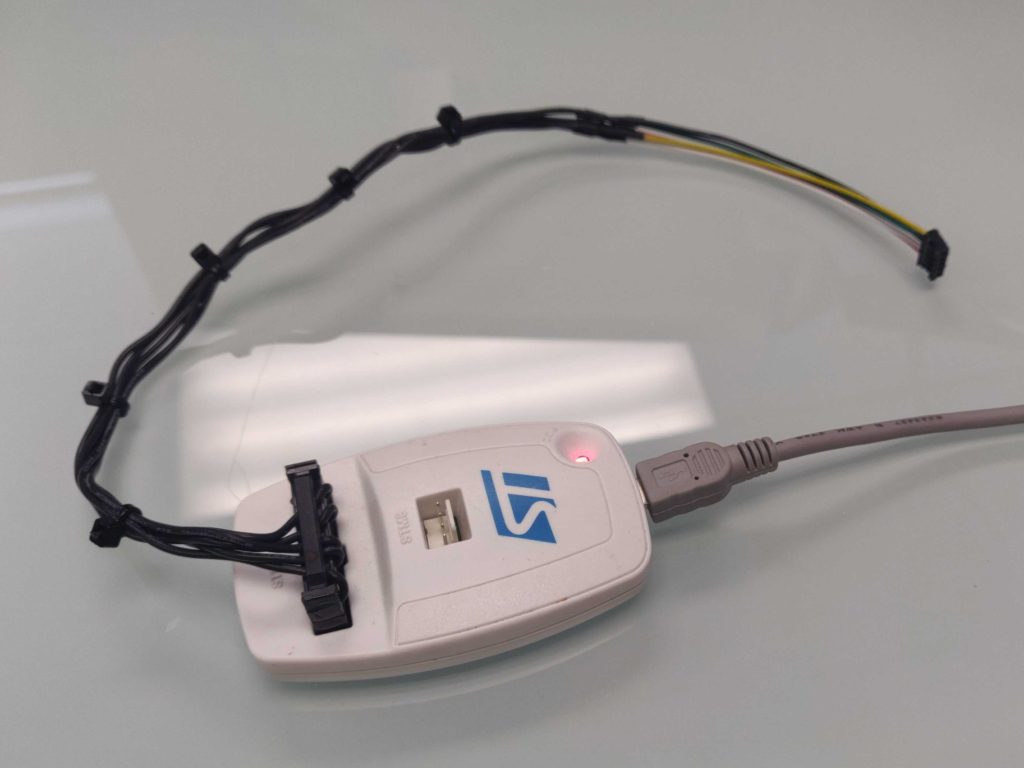
Genesis – Manual Firmware Update – How to use STM32CubeProgrammer (The Other Way)
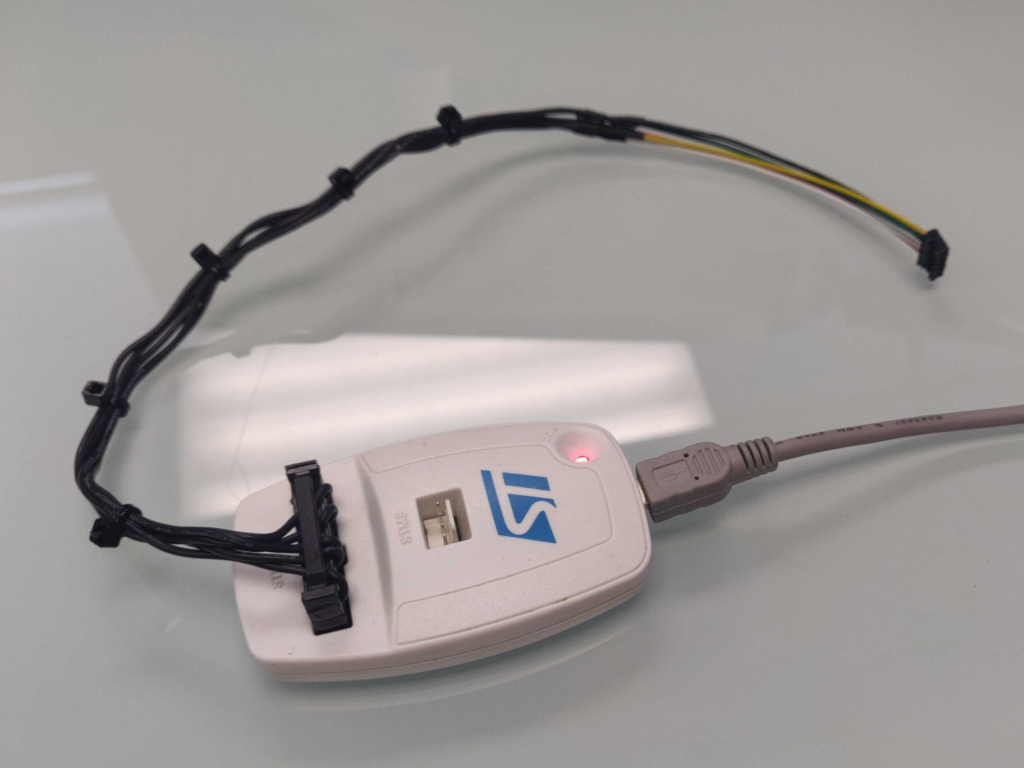 The Programmer Module and Cable
 This is the box that the unit comes in
You can update the firmware of a phaser/vest manually using a data cable. Reasons for doing this could be that the network firmware update failed part way through, or there is an issue with a specific phaser PCB.
The Main PC you use for the Delta Strike game server should already have the software to use the STM Programmer, but if not, download it from here.
To use the Programmer, plug in the USB cable to your computer.
Plug in the data cable into the 5 pin connector on the PCB you wish to program.
Ensure the PCB component you want to program is powered on.
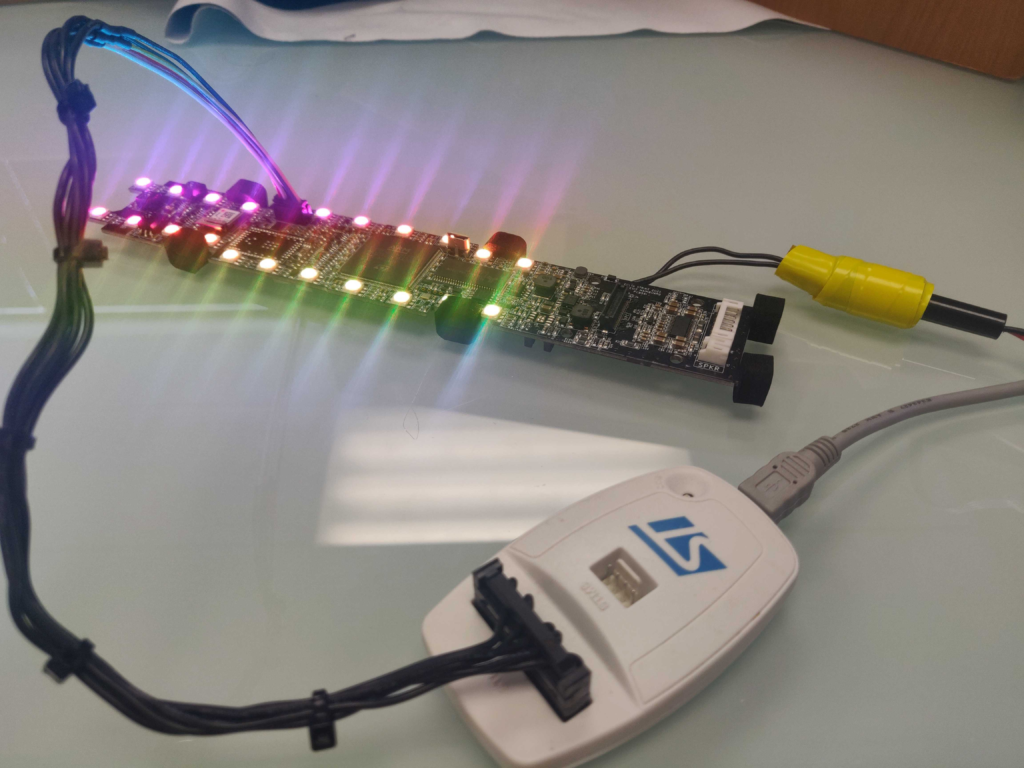 When programming a phaser mainboard, the lights should turn on once it has powered up. The data cable goes into the 5 pin socket at the front near the Wifi chip.
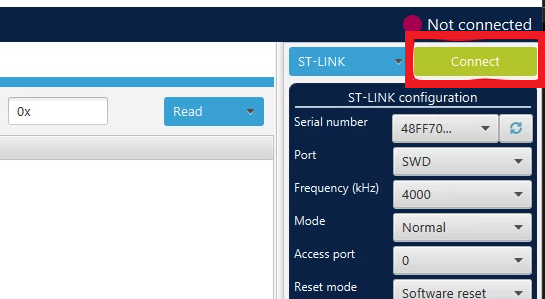
Open the STM32 Programmer app, click on connect. Once you are connected, the options below the connect button should turn grey. If it does not connect try unplugging the programmer from the PC and plug it back in. If it still fails to connect then the PCB will need replaced.
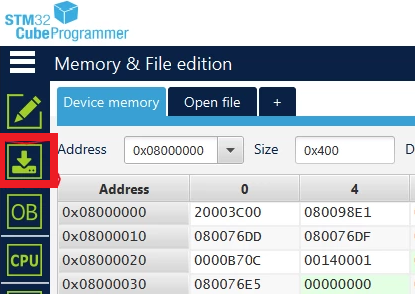
If the device connects, click on the programming icon that looks like an arrow pointing down onto a square. The menu is called Erasing & Programming.
Click on Browse.
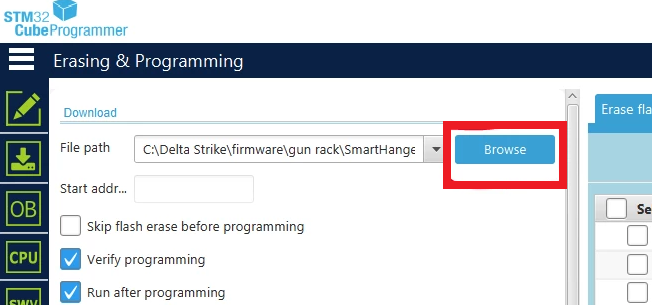
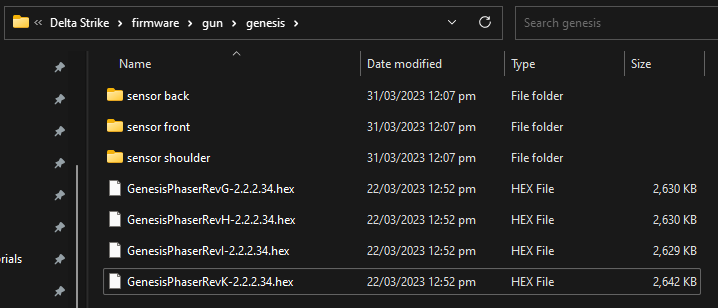
Find the folder containing the different firmware (C/Delta Strike/firmware/gun/genesis). Select the appropriate file based on the PCB component type and revision marked on the back of the PCB. If the firmware folder is missing, please contact support.
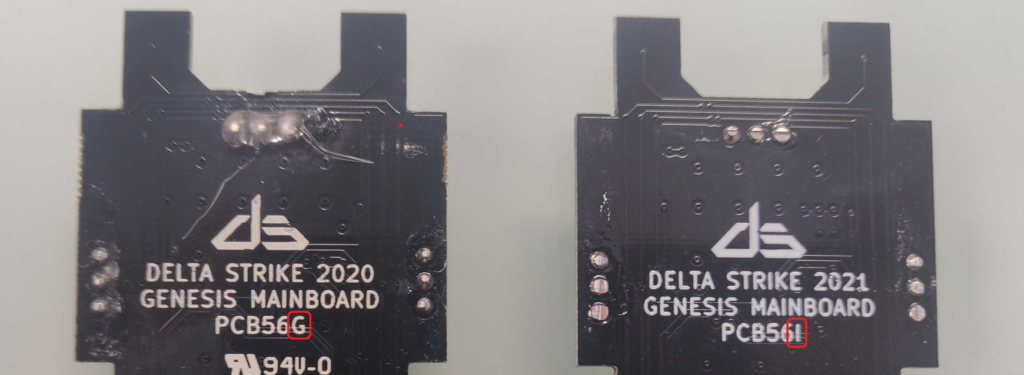 The Mainboard on the left is a revision G, and the one on the right is a revision I
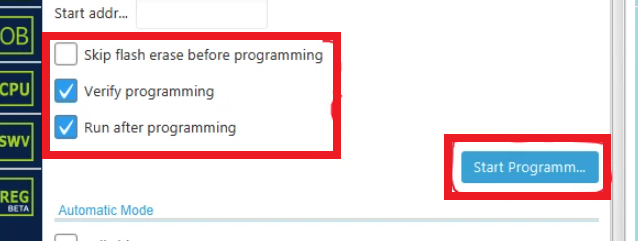
Make sure the check boxes are the same as the picture below.
Click ‘Start Programming’. The PCB will program then start up.
Click OK out of the popup windows.
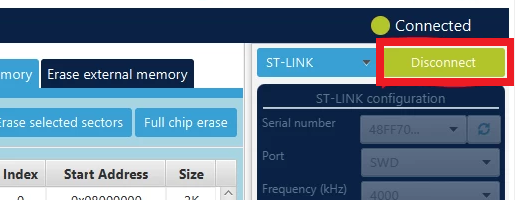
Finally, click on disconnect.
Unplug the cable from the PCB and reassemble the phaser/component.