
How to troubleshoot: No network connections
This guide will walk you through a few steps as to why nothing is connecting to the Delta Strike Game Server.
Operating your Game Server
Knowing how to operate your game server is always a great knowledge to have. Restarting your game server is a normal part of lasertag whether there is a system issue, turning your pc back on in the morning, or just wanting to know how.
Your game server is an application that allows your lasertag system to function and operate lasertag. When first powering on your PC locate your game server and start the application. The application will look like this.
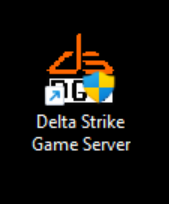
Double click the application to open the server. As the server boots up it is always good to wait for connections to appear.
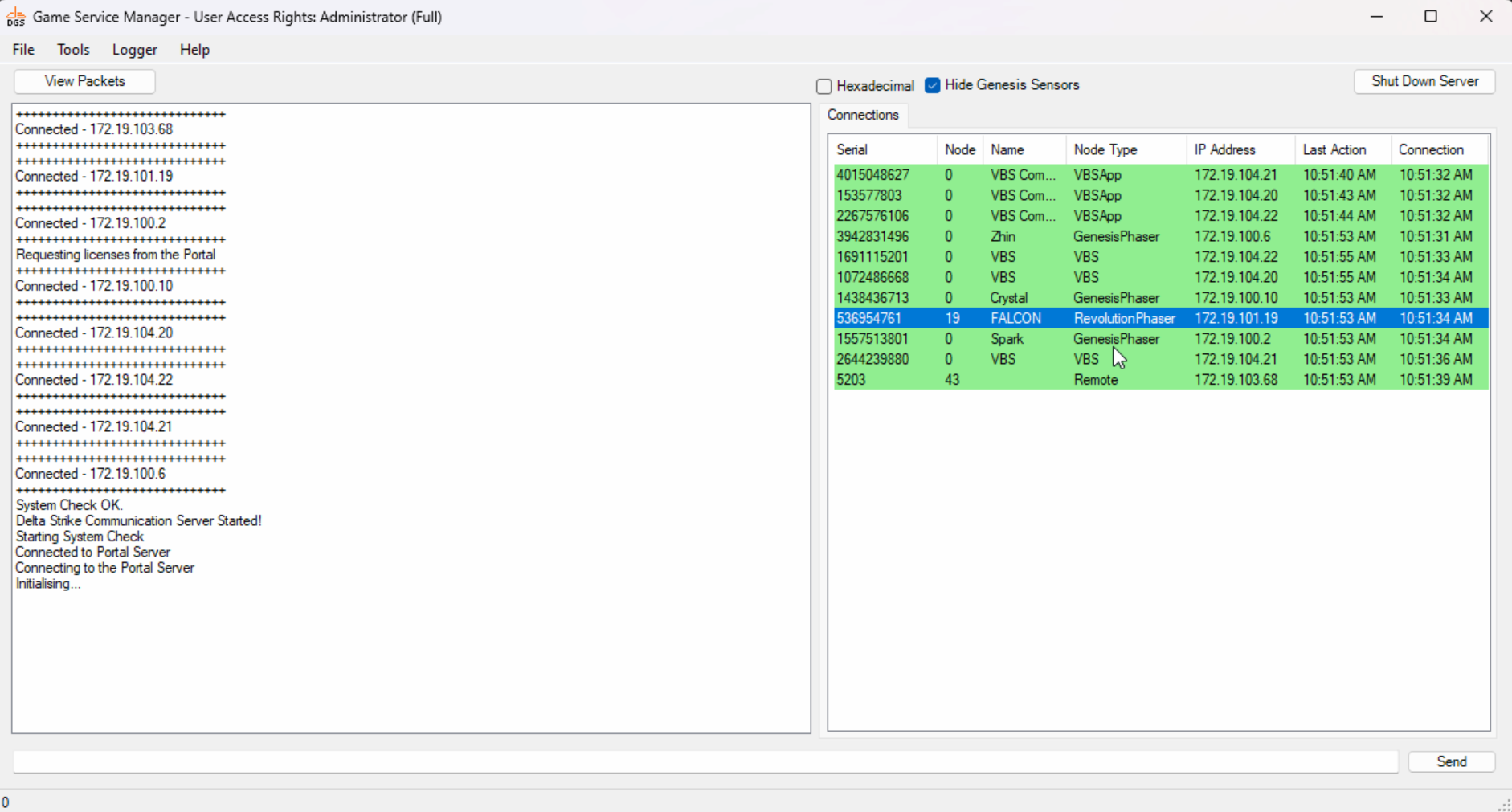
Anytime the server is minimized you can reopen it by locating it on the taskbar. This is shown in two locations.

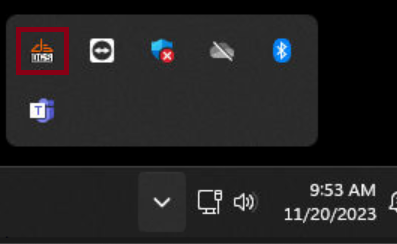
How to restart the Game Server
To restart the server open your game server and select Shut Down Server.

Once selected a pop up box will appear, select Yes.
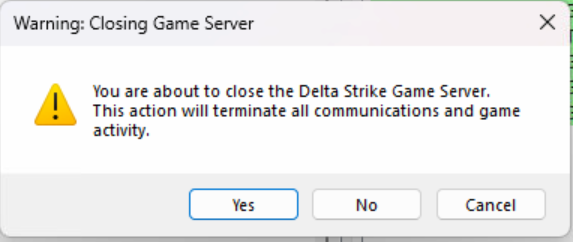
Network Setup
Verify that the network switch is powered on.
- The network switch, in most cases, is called Unifi and will be black or white.
- Power cycle the network switch by unplugging and plugging back in the power cord
- Verify there is an ethernet line running from the network switch to the back of the PC.
- Check your network card settings.
- Locate your network card by typing in the search bar, View Network Connections.
- Right click the unidentified network card and select properties
- Double click ipv4
- Make sure the card is set to the following:
172.19.99.100
255.255.0.0
- Check if the PC has any windows updates.
- Restart your laser tag PC.
If the above steps do not work please contact Delta Strike Support.
888-538-2519 ext-1 or help@deltastrike.com