
Unable to start a game
It is never a good time for anyone when you cannot play laser tag. This will walk you through some troubleshooting steps as to what is going on.
Your game server is an application that allows your lasertag system to function and operate lasertag. When first powering on your PC, locate your game server and start the application. The application will look like this.
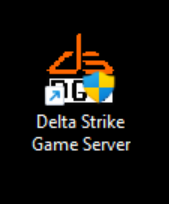
Double click the application to open the server. As the server boots up it is always good to wait for connections to appear.
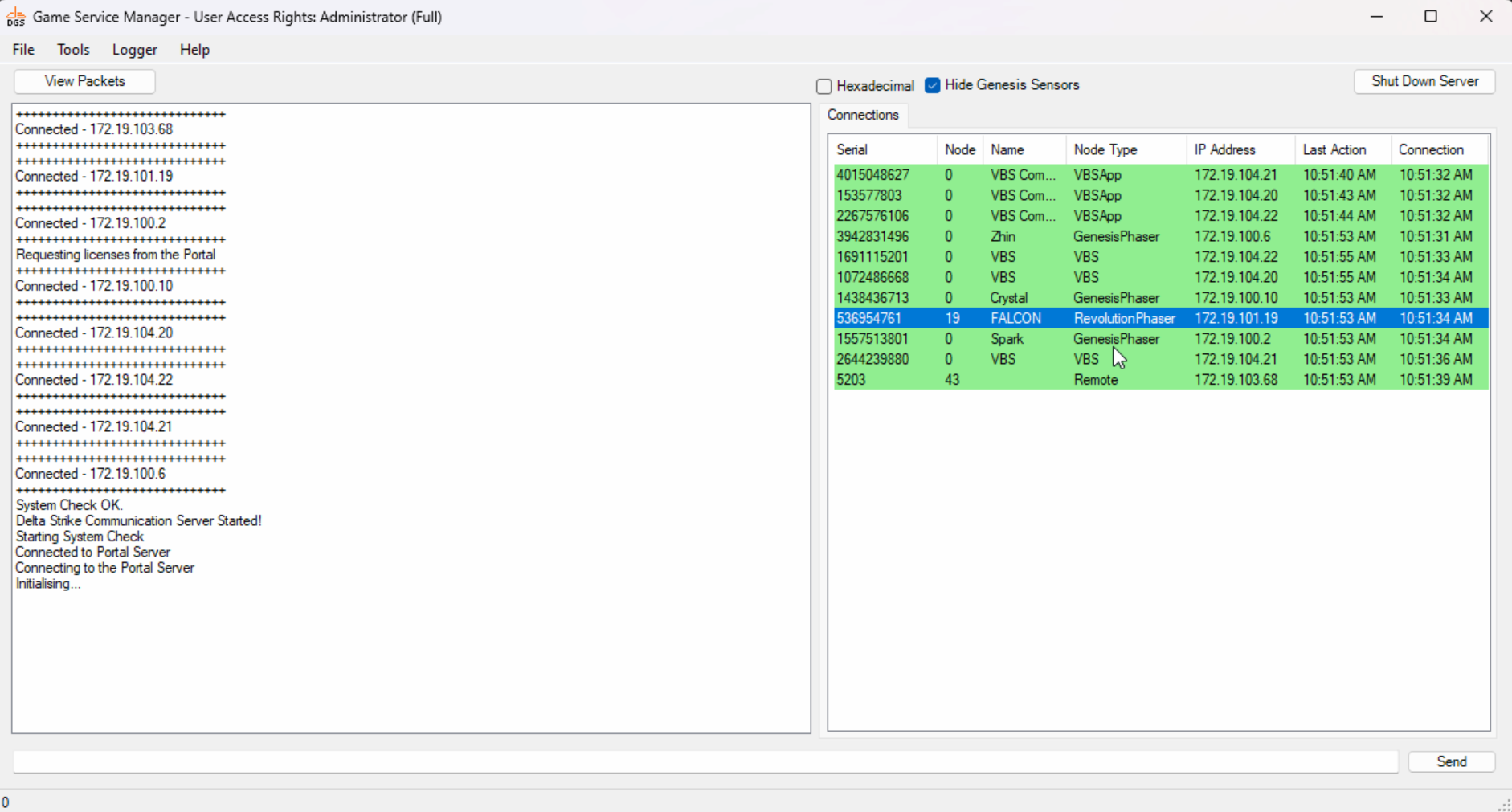
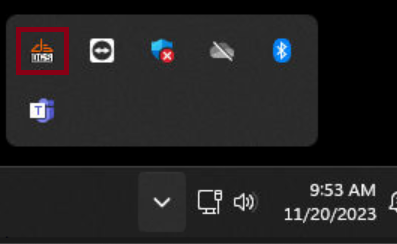
Anytime the server is minimized you can reopen it by locating it on the taskbar. This is shown in two locations.

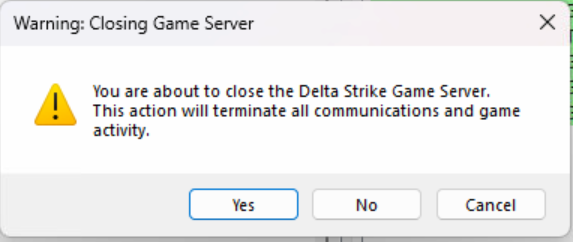
To restart the server, open your game server and select Shut Down Server.

Once selected a pop up box will appear, select Yes.
Check Phaser/Remote Connections
Open your game server and verify your remote and phasers are connected to the server. If they are not, try activating the network on them.
First, power on your phaser and put the key in the side of the phaser. Once in the configuration menu remove the key. Locate the Networking option and select it. If this isn’t in the settings list, press Config on the bottom right to display more options.
The following steps below are for sites using non DHCP servers or USG. If your phaser network says DHCP 2 click activate and wait for the phaser to say Game Server Up. If it does not connect, try DHCP 1 and follow the below steps.
The screens should look like this: (Tap Next to go to the next screen)
If setting the SSID to deltastrike5 does not work, please try using deltastrike.
Pay special attention to the last number shown in the red rectangle in the last image. This number is used to differentiate the phasers from one another on the server.
We recommend looking at the Delta Strike Game Server while configuring the IP addresses. Each phaser must have a different IP address and should not be set to .42
Some sites have an IP address printed on the side of the phaser near to where the key goes in. If this is the case, it may be best to use that address for each phaser.
The range of numbers able to be used here is between .1 and .255
(One way to do this is to start from .1 on the first phaser you are setting and go up from there. If you are looking at the game server at the time you can see the IP addresses of all the other phasers to avoid IP conflicts)
If the config is correct, you should see this screen next. Keep an eye on the State box. If there is nothing in this box, then the Wifi chip on the phaser is faulty.
Give the phaser a few seconds to connect, if it is working, it should look like this:
If over a minute has passed and the bottom boxes are still empty, the Wifi Modem may be broken. To remedy this, you should replace the phaser main board, or on the newer Revision K and up main boards, replace the Wifi modem daughter board.
NOTE: If the phaser starts to upload or update, do not touch it. Wait until it has finished. This may require a few restarts.
Network Setup
Verify that the network switch is powered on.
- The network switch, in most cases, is called Unifi and will be black or white.
- Power cycle the network switch by unplugging and plugging back in the power cord
- Verify there is an ethernet line running from the network switch to the back of the PC.
- Check your network card settings.
- Locate your network card by typing in the search bar, View Network Connections.
- Right click the unidentified network card and select properties
- Double click ipv4
- Make sure the card is set to the following:
172.19.99.100
255.255.0.0
- Check if the PC has any windows updates.
- Restart your laser tag PC.
If the above steps do not work, please contact Delta Strike Support.
888-538-2519 ext-1 or help@deltastrike.com