
Why isn't the laser working?
If your phaser's laser isn't working, follow these steps. Feel free to contact support if this doesn't work or you need help.
If the laser in the phaser isn't working, meaning you can't visually see the laser, you will need to open the phaser to check the connection. If it is unplugged, plug it back in to see if that fixes the problem.
If the wire is damaged or it was plugged in and still not working, you will need to try and replace the laser. Follow these steps to replace the laser. Keep in mind, some models have one laser, and others have two.
Genesis – How to replace: Optical Block – MD2008 / MD2009
| Part Name: | PCB – Genesis Optical Block |
| Part Number: | MD2008 / MD2009 |
| Model: | Genesis Pro / Genesis FEC |
Start by powering off the phaser by inserting the key into the slot in the back sensor. The phaser is off when all the lights have turned off.
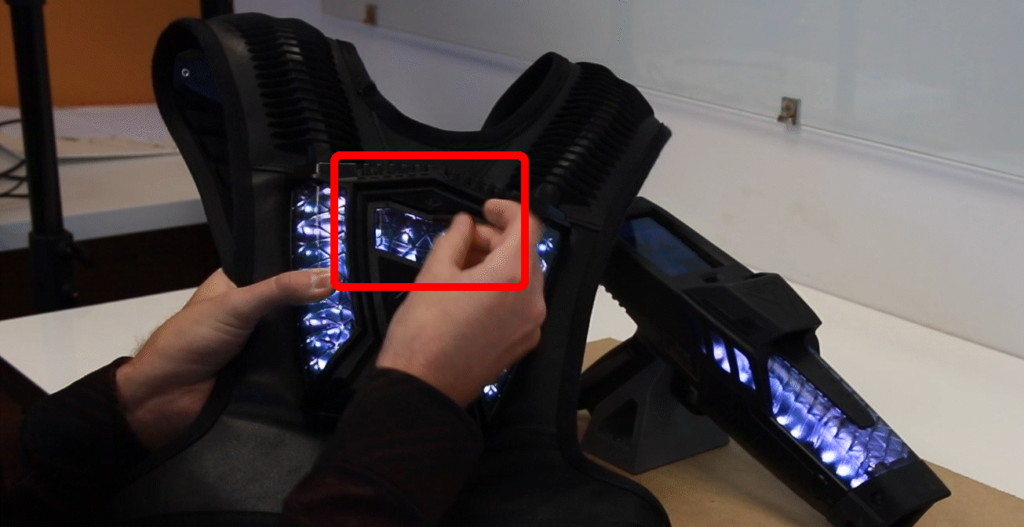 Always power off the unit before performing maintenance.
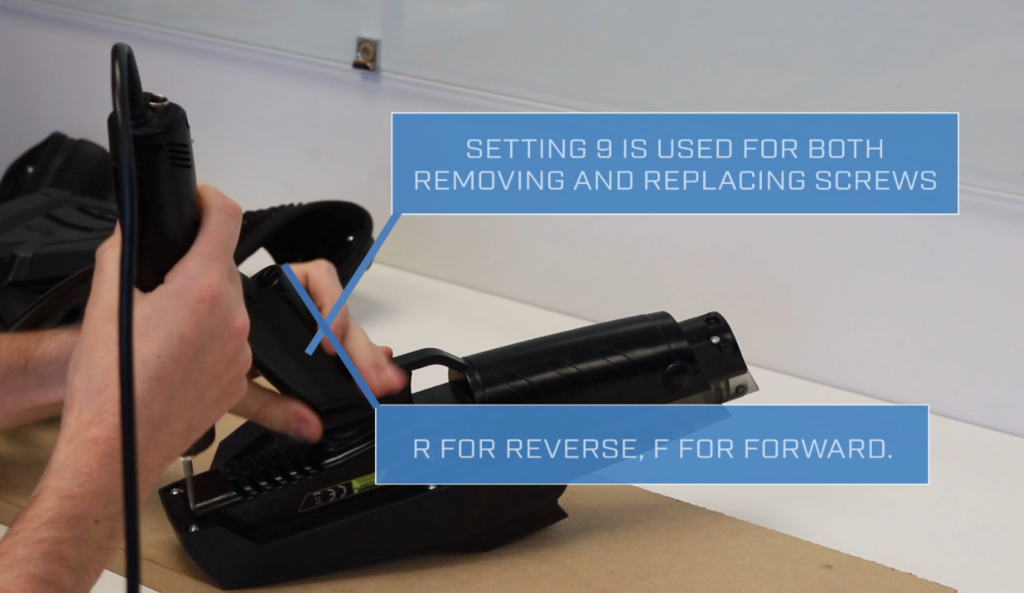
Remove the nozzle with a screwdriver or the head of the hex driver by slotting in into the gap at the front of the phaser. Then use the hex driver to unscrew the 6 hex screws on the bottom of the phaser. Ensure that the hex driver is set to 9 and is set to the reverse direction. The top plastic enclosure should now easily pull away.
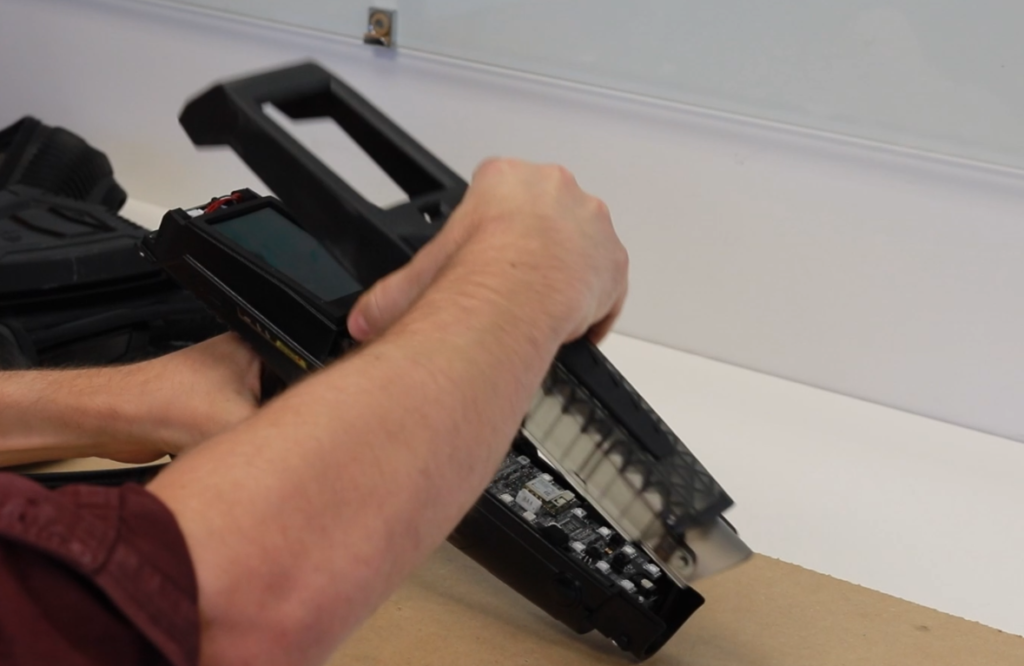
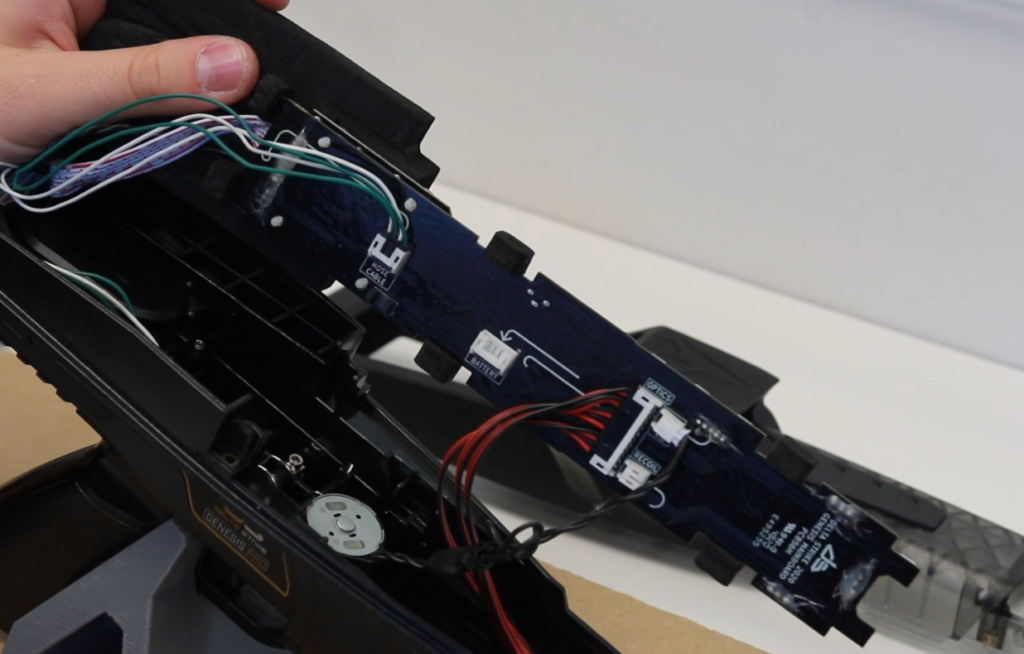
Remove the main board by pulling back on the LCD screen, while gently supporting the front of the PCB. Set the main board to the side of the phaser while you carefully pull out the cables inline with the direction of the plugs.
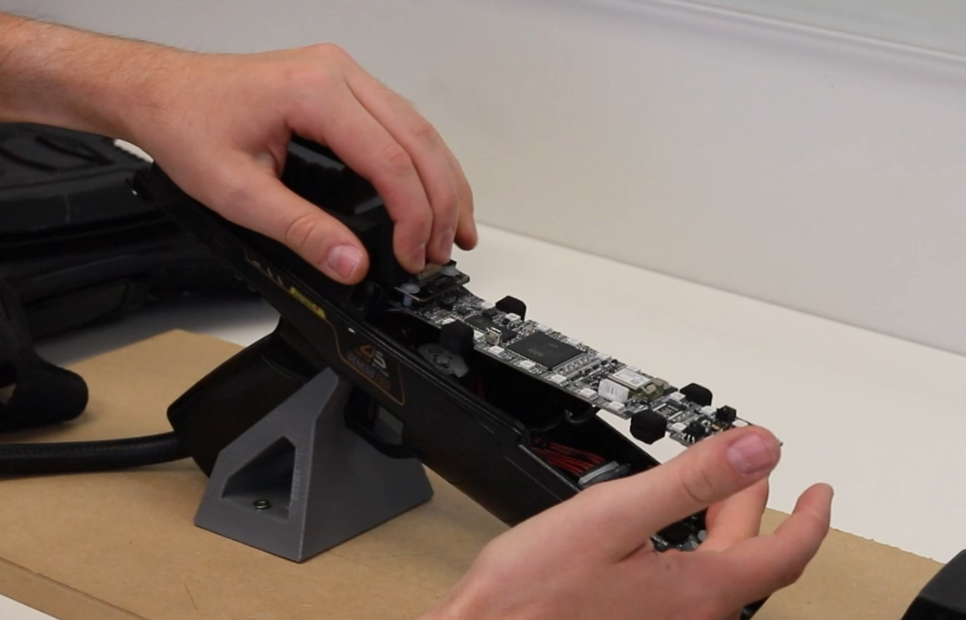
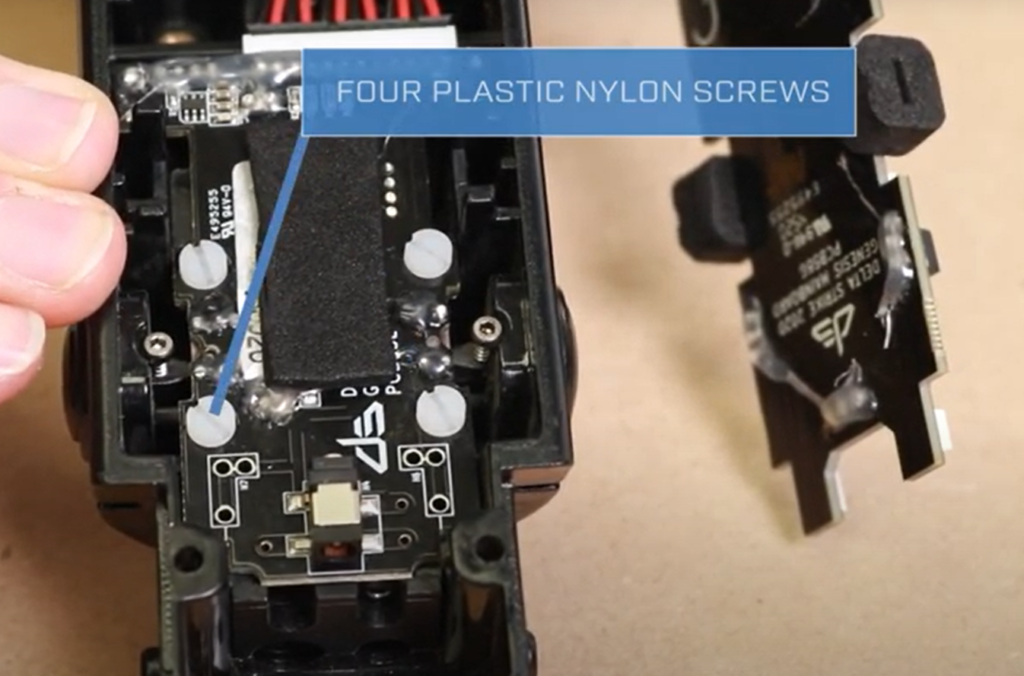
The Optics Block is held in with 4 nylon screws and is located at the front of the phaser. Use a small flat-head screwdriver to undo these. Once they are unscrewed, unplug the cable from the optics block and set it aside.
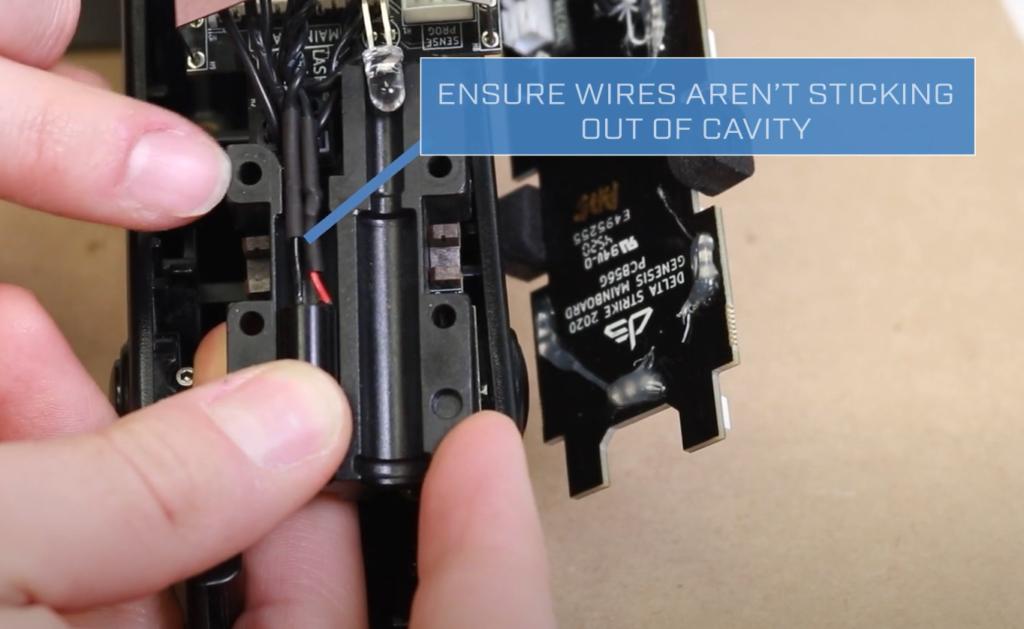
Place in the new optics block and ensure that the wires are safely inside the cavity. Hold the laser in the block while you place it down.
Plug the cable back in, then screw the nylon screw back in.
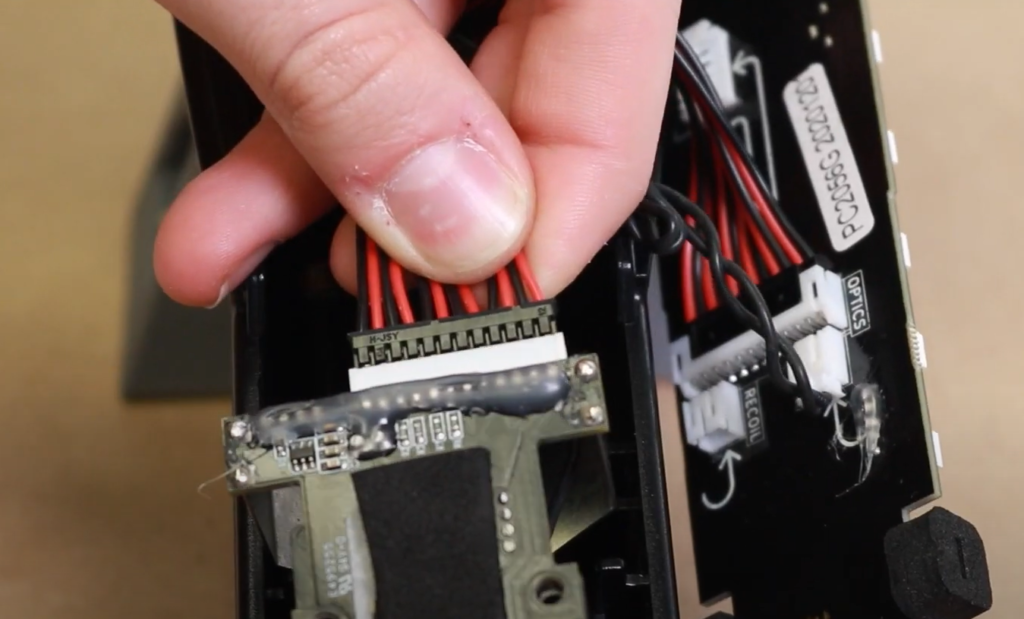
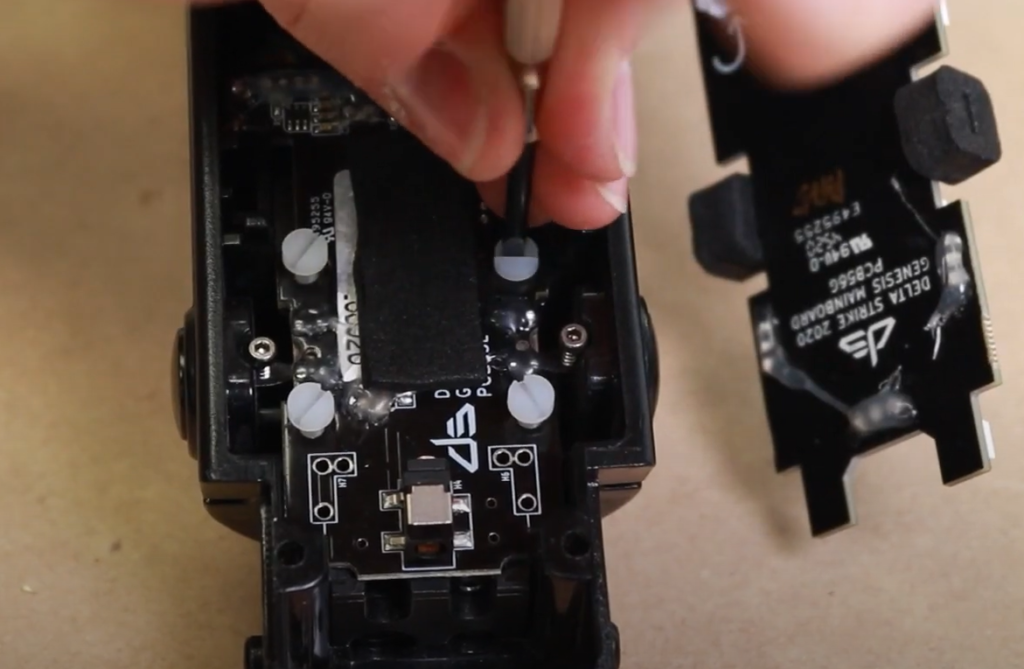
Now that the new optics block is secure, return the phaser mainboard to the assembly. Ensure that the cables are tucked away neatly
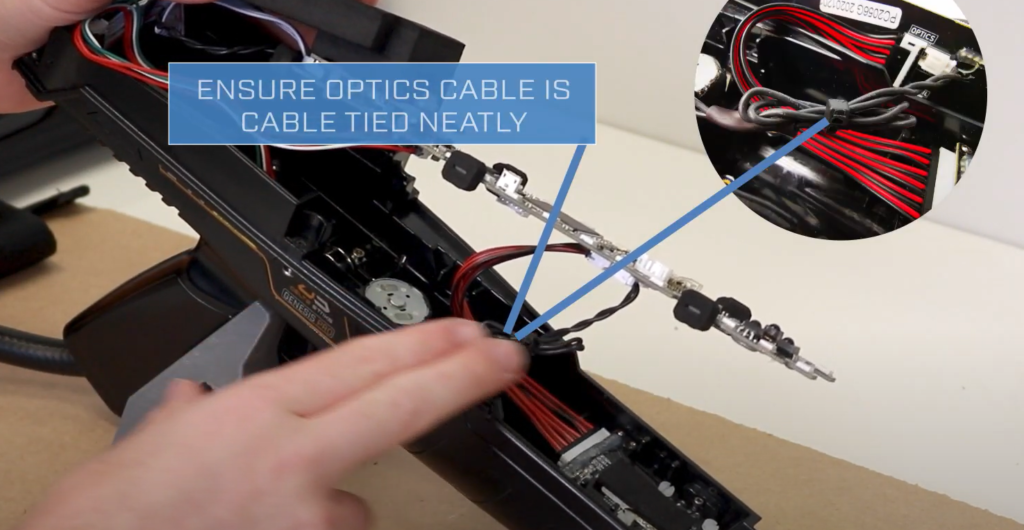
Insert the cables from back to front, ensuring that no cables are being pinched or strained when the mainboard is placed back into its cavity.
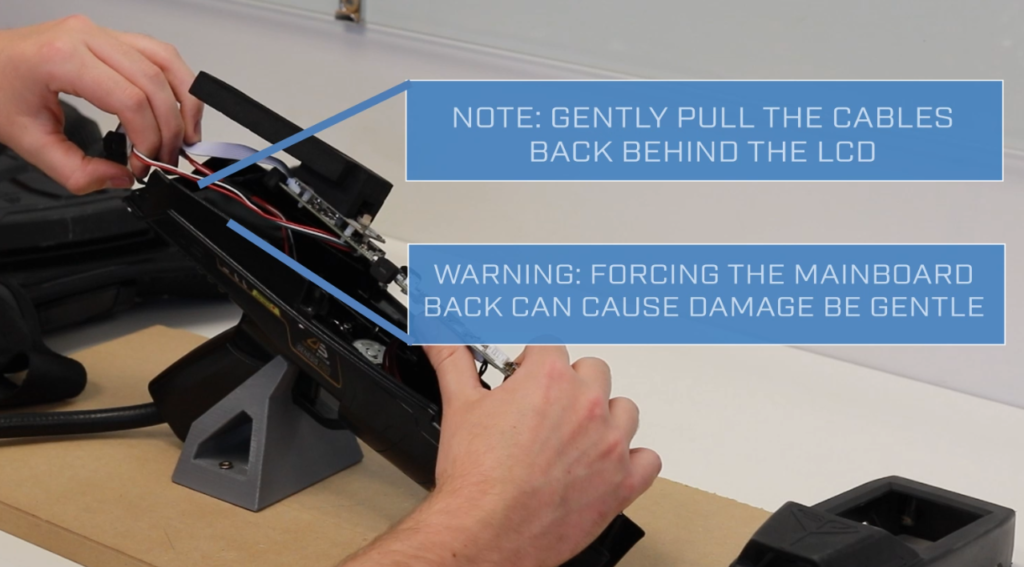
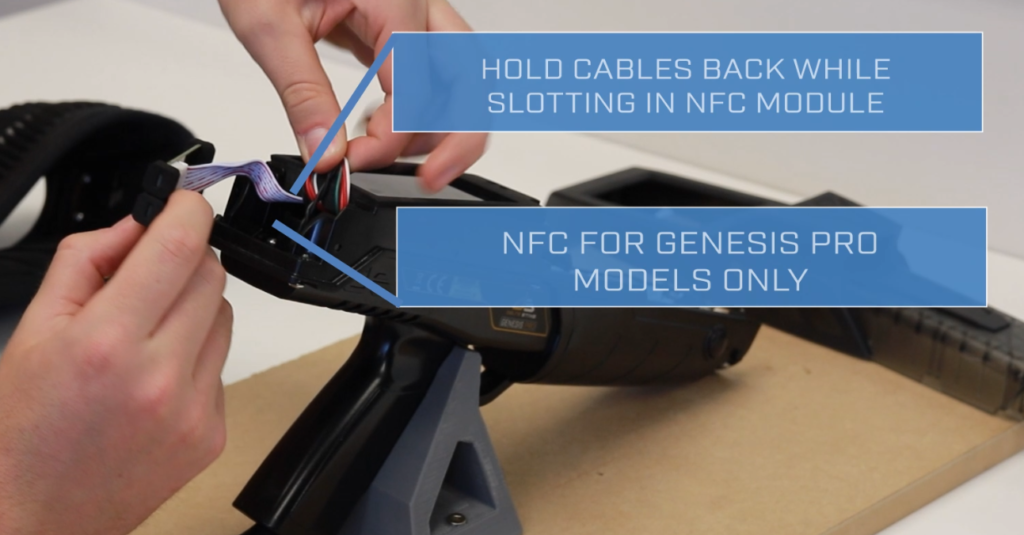
Once the cables are securely tucked away, insert the NFC module. You can now reattach the top part of the enclosure using the hex driver.